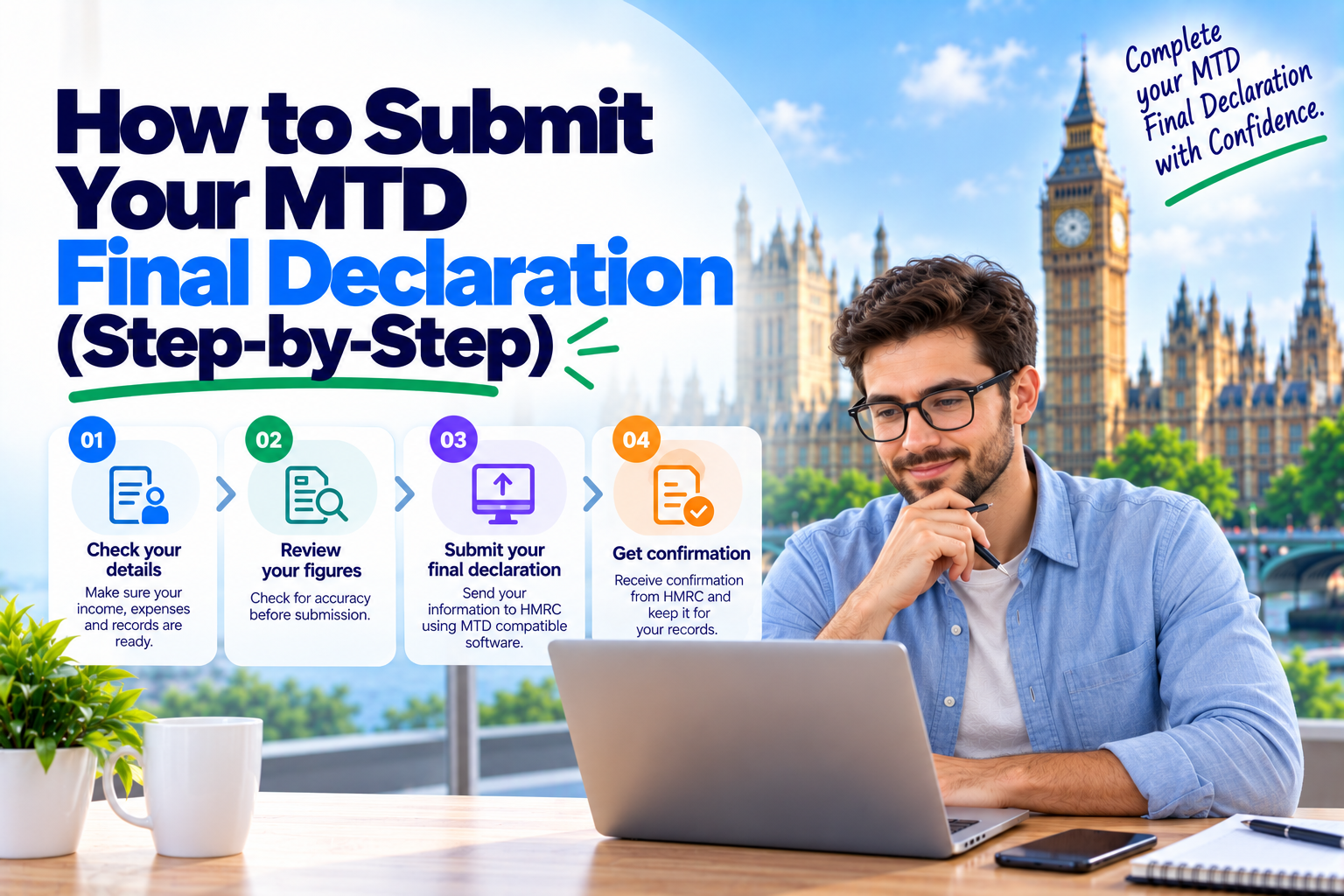
What is the MTD Final Declaration?
The Final Declaration is the last step of your Making Tax Digital for Income Tax (MTD ITSA) year. It confirms to HMRC that the information you have sent for the tax year is complete and correct, and it finalises your Income Tax position.
Under MTD ITSA, the Final Declaration replaces the traditional Self Assessment tax return. Instead of filling in a return form, you send your figures through HMRC-recognised software during the year, ask HMRC to calculate your tax, check that calculation, and then declare it final.
In 11 MTD Bridge, this whole process takes a few clicks. This guide walks you through each step, explains what every button does, and shows you how to choose between Final Declaration and Confirm Amendment.
When is the Final Declaration due, and what must you submit first?
The Final Declaration is due by 31 January after the end of the tax year. The deadline follows the same rule every year, and your tax payment dates stay the same as under Self Assessment.
| Tax year | Tax year ends | Final Declaration due |
|---|---|---|
| 2026–27 (first mandatory year) | 5 April 2027 | 31 January 2028 |
| 2027–28 | 5 April 2028 | 31 January 2029 |
HMRC can only calculate an accurate year-end figure once it has all your information. Before you start the Final Declaration, make sure you have submitted:
- All four quarterly updates for each self-employment and UK or foreign property business.
- Year-end adjustments, such as accounting adjustments, allowances and any corrections to your quarterly figures.
- Other income that is not part of your business, for example employment, savings, dividends or pension income.
- Reliefs and deductions, such as pension contributions, Gift Aid donations or other claims that affect your tax.
How to submit your Final Declaration in 11 MTD Bridge: step by step
Once the relevant information has been submitted, you can complete your Final Declaration in seven steps.
Go to Quarterly Filings → Tax Return Obligations
Log in to 11 MTD Bridge and open Quarterly Filings, then select Tax Return Obligations. This screen lists the obligations HMRC holds for you, including your quarterly updates and your annual Final Declaration.
Find your Final Declaration obligation and click File
Locate the Final Declaration obligation for the correct tax year and click File. Check the tax year shown before you continue, especially if you have more than one year open.
Click Trigger Calculation
Click Trigger Calculation. This asks HMRC to work out your Income Tax and National Insurance for the full year, using everything you have submitted. The calculation is done by HMRC, not by the software, so it reflects exactly what HMRC holds on record.
Wait for the status to show Processed, then click View
HMRC usually takes a short time to return the result. When the outcome changes to Processed, click View to open the full calculation.
Review the full-year calculation carefully
This is the most important step before you declare. Check that:
- Your total income from each business matches your records.
- Expenses, allowances and adjustments have been applied correctly.
- Other income, such as employment or savings, is included.
- Reliefs like pension contributions and Gift Aid are reflected.
- The tax due looks reasonable compared with previous years.
Choose the right option at the bottom of the calculation page
At the bottom of the calculation page you will see two options:
- Final Declaration: the year-end declaration that finalises your MTD Income Tax position for the tax year.
- Confirm Amendment: used when you need to amend information that has already been submitted or finalised.
See which option to choose below.
Select the option and click Confirm & Submit Return
Select the option that fits your circumstances and click Confirm & Submit Return. Your declaration is sent to HMRC, and your tax position for the year is finalised. Keep a copy of the calculation for your records.
Final Declaration vs Confirm Amendment: which should you choose?
Choose Final Declaration if this is your first time finalising the tax year. Choose Confirm Amendment only if you have already finalised the year and need to correct it.
| Final Declaration | Confirm Amendment | |
|---|---|---|
| When to use | First year-end submission for the tax year | Correcting a year you have already finalised |
| What it does | Finalises your Income Tax position | Updates a previously finalised position |
| Deadline | 31 January after the tax year ends | Within 12 months of the 31 January filing deadline |
| Example | Finalising a tax year for the first time | You find a missed expense after declaring the year |
Pre-submission checklist and common mistakes
Run through this checklist before you click Confirm & Submit Return:
- All four quarterly updates are submitted for every business
- Year-end adjustments and allowances are entered
- Non-business income (employment, savings, dividends, pensions) is included
- Reliefs such as pension contributions and Gift Aid are claimed
- The calculation status shows Processed
- You have reviewed the full calculation and the tax due looks right
- You have selected the correct tax year and the correct option
Common mistakes to avoid
- Declaring before all information is submitted. The calculation only reflects what HMRC holds, so missing income means a wrong tax bill.
- Skipping the review. Treat Step 5 as your final check, not a formality.
- Choosing Confirm Amendment for a first submission. Use Final Declaration unless the year has already been finalised.
- Relying on an old calculation. If you change any figures, trigger a fresh calculation before declaring.
- Leaving it until late January. File early so you have time to fix any issues before the deadline.
Frequently asked questions
What is a Final Declaration in MTD?
It is the year-end step in MTD for Income Tax that confirms your submitted information is complete and finalises your tax position. It replaces the traditional Self Assessment tax return.
When is the MTD Final Declaration deadline?
The deadline is 31 January after the end of the tax year. For example, the Final Declaration for 2026–27 is due by 31 January 2028.
Who calculates my tax under MTD?
HMRC does. When you click Trigger Calculation in 11 MTD Bridge, HMRC calculates your tax from the information you have submitted and returns the result to the software.
Can I change my Final Declaration after submitting it?
Yes. You can amend it within 12 months of the 31 January filing deadline using the Confirm Amendment option. After that, you need to contact HMRC directly.
Can I correct a quarterly update before my Final Declaration?
Yes. You can correct quarterly figures at any time before the Final Declaration, with no penalty.
What happens if I miss the deadline?
You may receive a late submission penalty, and interest and penalties can apply to tax paid late. File early to stay safe.
File your Final Declaration with 11 MTD Bridge
HMRC-recognised MTD software for sole traders, landlords and agents. Submit quarterly updates, trigger HMRC's calculation and complete your Final Declaration in one place.
Log in to 11 MTD Bridge